By Patricia ModispacherMay 28, 2024Updated Nov 4, 202616 minute read
Confluence macros list: every Cloud macro and how to use it
All built-in Confluence Cloud macros in one list, how to insert and edit them, which legacy macros are gone, and what replaces user macros in Cloud.
Confluence macros are building blocks you insert into a page to show content that Confluence keeps up to date for you: a table of contents, a list of attachments, Jira work items, a report across many pages. In Confluence Cloud, you add them by typing / on a page or by selecting the + button next to a content block.
This guide lists the built-in Cloud macros by category, shows how to insert and edit them, explains which Data Center and legacy macros are no longer available, and covers what to do if you need a macro Confluence does not have.
What are macros in Confluence?
Atlassian calls everything you can insert into a page an element. Basic elements are things like a date, a status, a panel or a divider. Macros are the subset of elements that do more: they usually have settings, and many of them pull in content from elsewhere. An Insert excerpt macro shows text from another page, and a Task report macro collects open tasks across a space.
This has two consequences. Some items that used to be macros, such as panels and the status label, are basic elements in Cloud. And apps from the Atlassian Marketplace add their own macros, which appear in the same menu as the built-in ones.
How to insert a macro in Confluence Cloud
- Open the page in edit mode.
- Type / where you want the macro, or hover over a content block and select the + button.
- Start typing the macro name to filter the list, then select it.
- Configure the macro in the panel that opens. Changes are saved as you go.
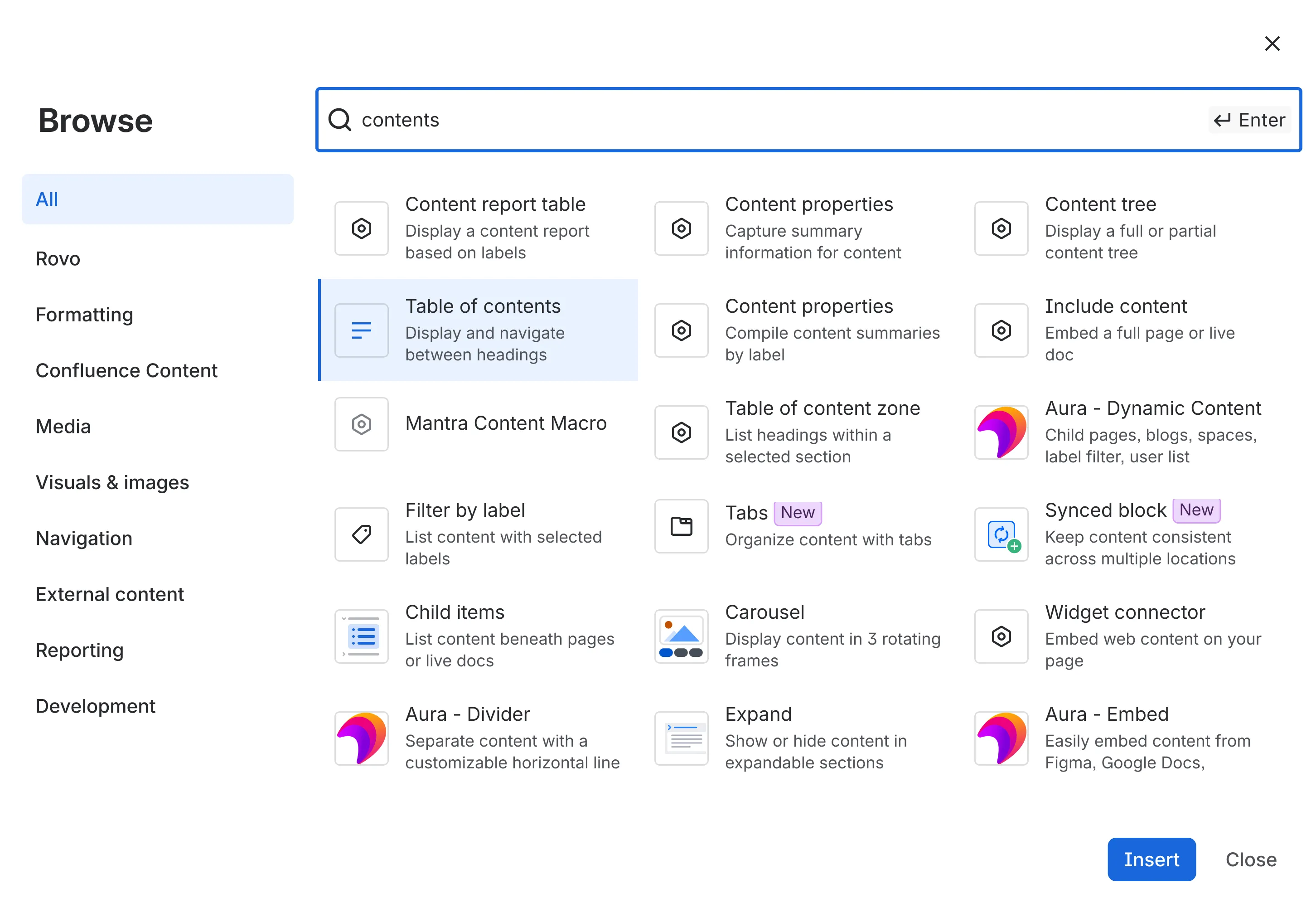
To see everything at once, select View more at the bottom of the / or + menu. This opens the element browser with all elements and macros, including those from apps.
How to edit or remove a macro
Select the macro on the page in edit mode, then select the edit (pencil) icon to open its settings again. Some macros also offer centered, medium-width and full-width options in the same toolbar. To remove a macro, select it and choose the trash icon. You can also cut, copy and paste a selected macro like any other content.
Confluence Cloud macros list
These are the built-in macros you can insert in the Confluence Cloud editor, grouped the way Atlassian groups them in its documentation.
Show Confluence content
| Macro | What it does |
|---|---|
| Attachments | Lists files attached to a page, with optional upload and previews |
| Blog posts | Shows blog posts filtered by space, label or author |
| Change history | Shows the version history of the current page |
| Child items | Lists the pages below the current page |
| Content report table | Shows pages with given labels as a table |
| Contributors | Lists the people who edited or watch a page |
| Create from template | Adds a button that creates a page from a chosen template |
| Excerpt | Marks part of a page for reuse on other pages |
| Insert excerpt | Shows an excerpt from another page |
| Filter by label | Lists content with given labels |
| Include content | Shows the full content of another page or live doc |
| Decision report | Lists decisions together with the pages they come from |
| Labels list | Lists the labels of a space alphabetically |
| Popular labels | Shows the most-used labels in a space or site |
| Recent updates | Lists recently changed content |
| Spaces | Lists several spaces |
| Task report | Collects tasks across pages, filtered by space, assignee, label or date |
| User profile, Profile picture | Show a person’s profile summary or avatar |
Jira and development
| Macro | What it does |
|---|---|
| Jira work items (Jira issues) | Shows one work item, a list or a count from a JQL search, filter or URL |
| Jira charts | Shows Jira data as a chart |
| Jira road map | Shows upcoming versions of Jira projects |
| Jira Data Center | Shows work items from a linked Jira Data Center instance via JQL |
| Assets | Shows filtered objects from Assets in Jira Service Management |
The macro browser also lists a range of Jira gadgets, such as pie charts, filter results, sprint burndown and created vs. resolved charts. They show the same reports you know from Jira dashboards.
Navigation
| Macro | What it does |
|---|---|
| Table of contents | Builds a linked list of the headings on the page |
| Table of content zone | Builds a table of contents for one section of the page |
| Anchor link | Sets a jump target that you can link to |
| Content tree | Shows all or part of the page hierarchy of a space as a tree |
| Page tree search | Adds a search box limited to part of the page tree |
| Live search | Adds a search box that shows results as you type |
| Insert Confluence list | Shows filtered Confluence search results as a list |
Reporting
| Macro | What it does |
|---|---|
| Content properties | Stores structured fields, such as owner, status and due date, in a small table on a page |
| Content properties report | Collects those fields from many pages into one table |
| User list | Lists the members of a group |
Media and visuals
| Macro | What it does |
|---|---|
| Widget connector | Embeds content such as YouTube videos from a URL |
| iFrame | Embeds a web page in a frame |
| Roadmap planner | Draws a simple roadmap with lanes and bars |
| Tabs (new) | Organizes content in tabs |
| Cards | Shows links as cards (Premium and above) |
| Carousel | Shows content in three rotating frames (Premium and above) |
| Excel, PDF | Embed an Excel or PDF document on the page |
Basic elements
These are not macros in Cloud, but people often look for them in the macro list. Type the shortcut on a page to insert them.
| Element | Shortcut |
|---|---|
| Panel (info, note, success, warning, error, custom color) | /panel |
| Status | /status |
| Expand | /expand |
| Code snippet | /code or three backticks |
| Decision | /decision |
| Action item | /action |
| Divider | /divider |
| Date | // |
| Mention | @ |
The most useful Confluence macros
A list of more than thirty macros does not tell you where to start. These are the ones that save teams the most manual work.
Table of contents
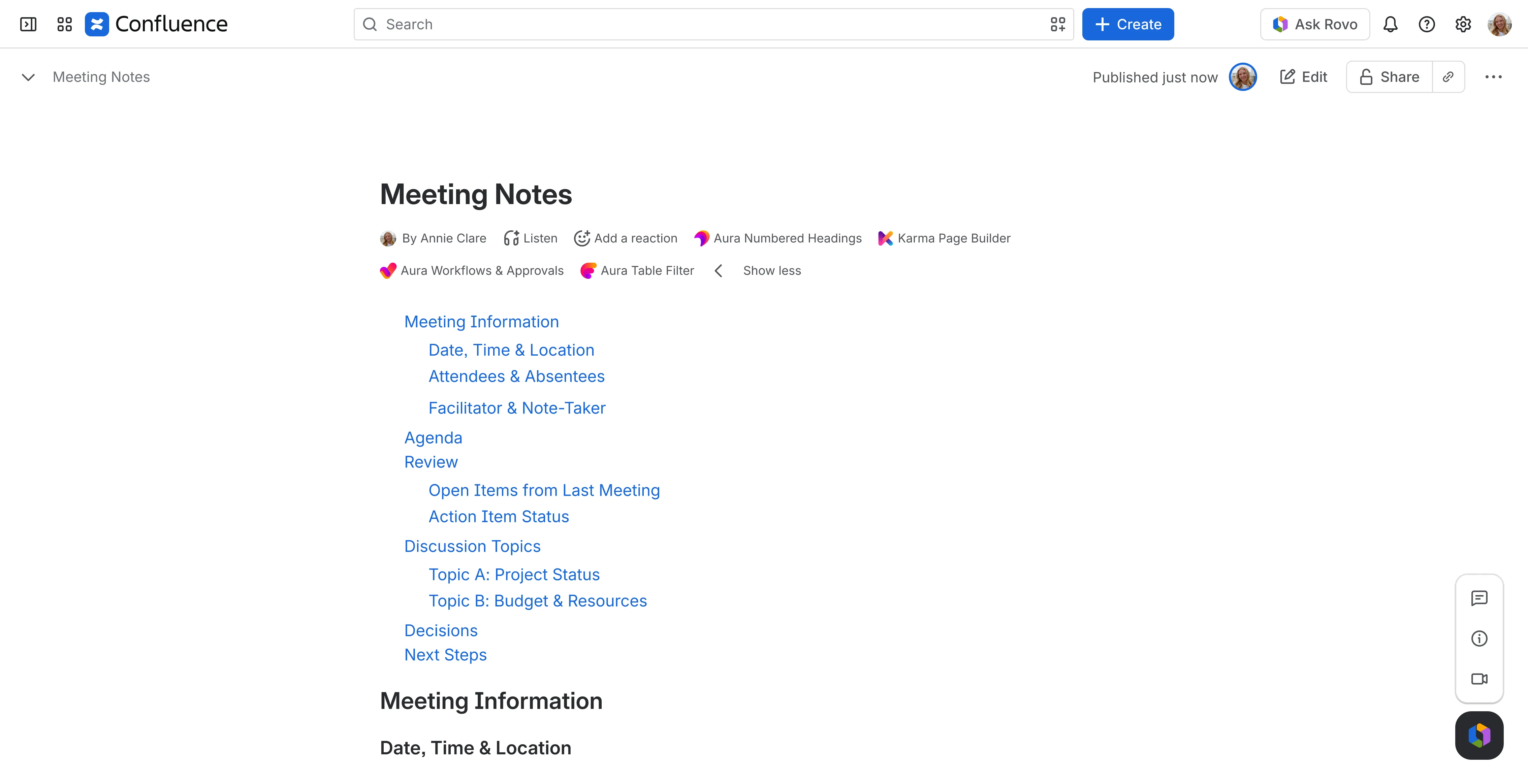
Long pages are hard to scan. The Table of contents macro builds a list of links from your headings and updates it whenever a heading changes. Put it at the top of documentation, long meeting notes and policy pages. You can limit it to certain heading levels and show it as a list or as a single line of links.
Excerpt and Insert excerpt
Write a piece of text once and show it in several places. Mark it with the Excerpt macro on the source page, then use Insert excerpt on the other pages. When you edit the source, every page that includes it shows the new version. This works well for product descriptions, contact details and disclaimers that would otherwise go out of date in five places.
Include content
Include content works like Insert excerpt, but shows the whole page. It is a simple way to reuse a standard section, such as onboarding steps or a team charter, across several spaces.
Jira work items
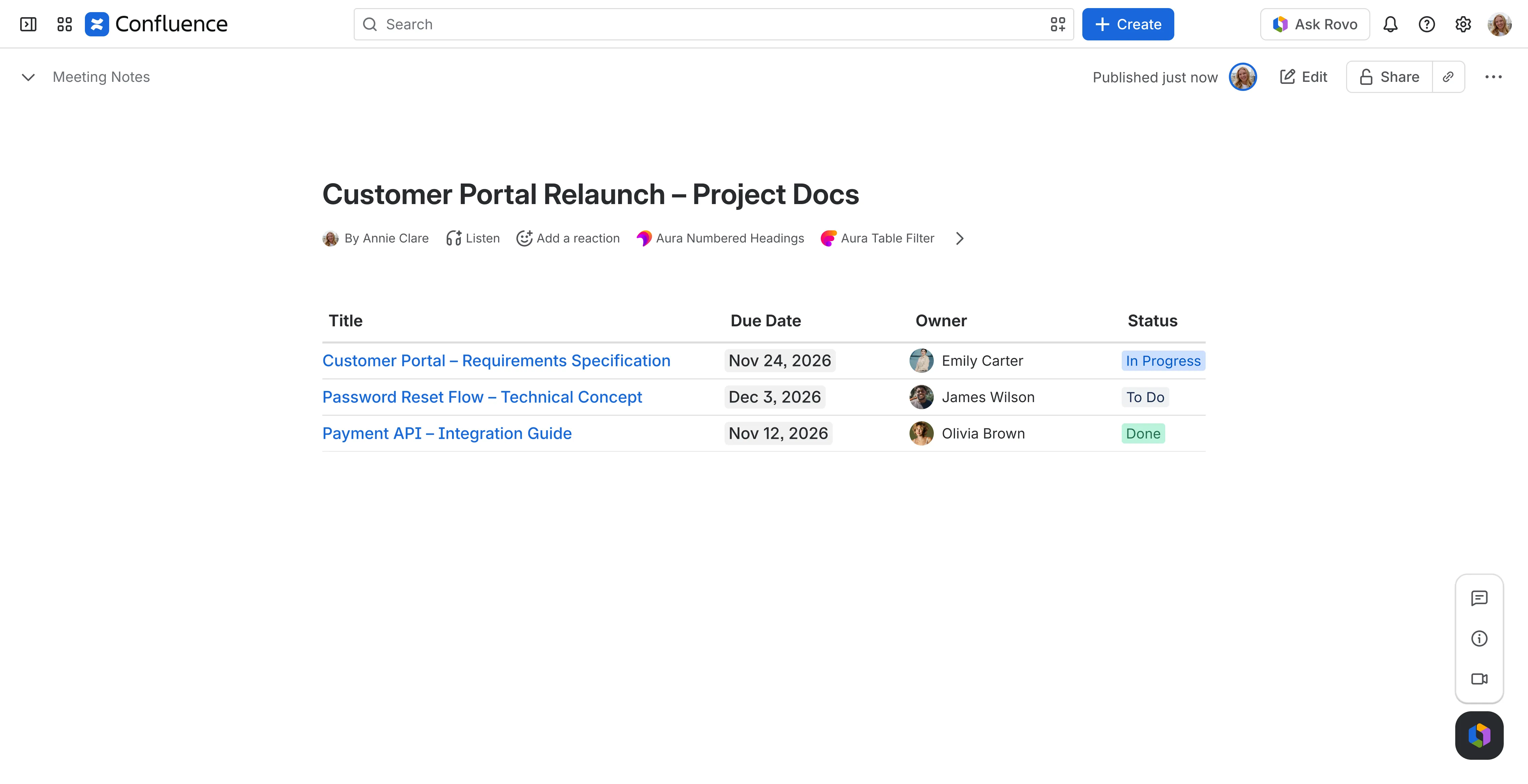
The Jira work items macro, still often called the Jira issues macro, shows a single work item, a list or a count based on a JQL query or a saved filter. Use it in status reports, sprint reviews and release notes, so readers who never open Jira still see the current state. You choose the columns, and a list can be as narrow as one epic or as broad as a whole project.
Content properties and Content properties report
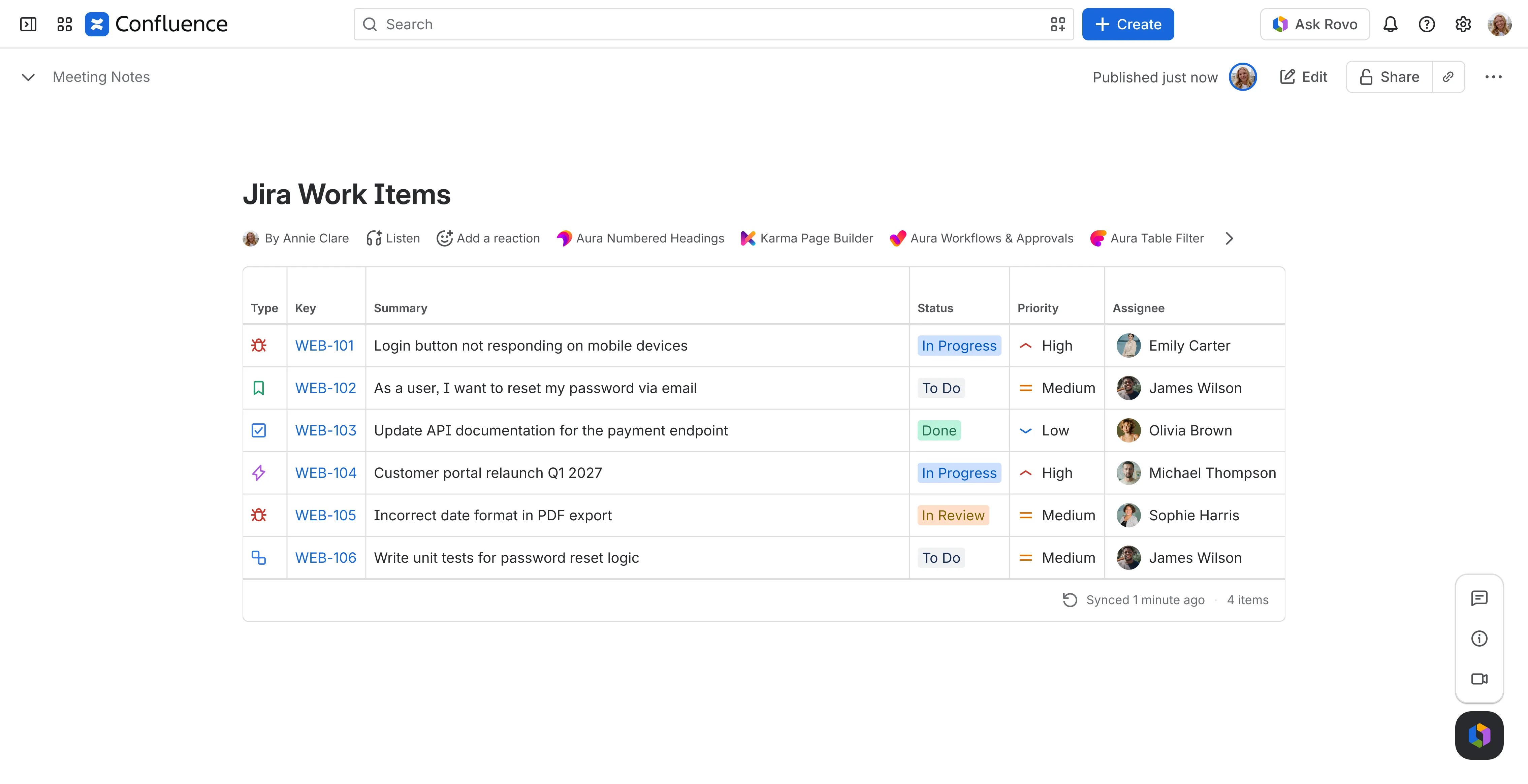
This pair turns pages into a lightweight database. Add a Content properties macro to each page with a small two-column table, for example Owner, Status and Due date, and give the pages a shared label. A Content properties report on an overview page then collects those fields from every labeled page into one table. Teams use it for project overviews, decision logs and requirement indexes. It works best when the pages come from a template, so the fields always match.
Attachments
The Attachments macro lists the files attached to a page. You can filter by file type, include old versions, show previews and let readers upload new files. It gives a team one place for forms, templates and exported reports.
Task report
Confluence turns every action item on a page into a task. The Task report macro gathers them across pages and spaces, filtered by assignee, label, space or due date. Put one on a team home page to show open follow-ups from all meeting notes in one place.
Filter by label
Filter by label lists all content with one or more labels. It is the simplest way to build a self-updating index: label every how-to article “how-to”, and a page with this macro always shows the full list.
Macros that are no longer available in Confluence Cloud
If you moved from Data Center, or followed an older guide, some macros will be missing. Existing instances on migrated pages stay visible, but new ones cannot be inserted. For most of them there is a better way in the Cloud editor:
| Macro | What to use in Cloud |
|---|---|
| Chart | Create a table, select it and choose Insert chart |
| Panel, Info, Tip, Note, Warning | The panel element (/panel) |
| Background color | The panel element with a custom color |
| Highlight | The highlight option in the toolbar |
| Align, Center | The align options in the toolbar |
| Strikethrough | The strikethrough option in the toolbar |
| Code block, Noformat | The code snippet element (/code); existing ones convert automatically |
| Navigation map | Child items |
| Page index | Insert Confluence list, Child items or Content report table |
| Gallery | Layouts, tables or the Cards macro |
| Recently updated dashboard | Recent updates |
| Contributors summary | Contributors (shows less detail) |
| Word, PowerPoint | Upload the file, or paste a OneDrive link as a smart link |
| Google Drive | Paste the Drive link; it becomes a smart link you can show as an embed |
| Multimedia | Insert the media file directly |
A few have no replacement in Cloud at all: Div, Style, HTML comment and Favorite pages. There is also no HTML macro in Confluence Cloud. If you need custom HTML, CSS or JavaScript on a page, see our guide to HTML in Confluence Cloud.
Atlassian keeps the full list, including macro keys and how each one converts, on its page about macros that are unavailable in the Cloud editor. Admins can see which of them are still in use with the Macro usage feature in Confluence administration.
User macros and custom macros in Confluence Cloud
Confluence Cloud has no user macros. In Data Center, an admin can write a macro with a short template directly in Confluence administration. Cloud has no such feature, and user macros are not migrated: Atlassian’s migration documentation says they “need to be recreated as Forge or Connect apps”.
If you need a macro Confluence does not include, you have three options:
- Look for an app on the Atlassian Marketplace. Most common needs, such as tabs, buttons, styled panels, embeds and dynamic page lists, are covered.
- Build a Forge app with the macro module. This needs a developer, and you maintain the app yourself.
- Check whether the macro is still needed. Many Data Center user macros existed to work around formatting limits, such as colored boxes or alignment, that the Cloud editor now handles on its own.
Formatting macros from the Marketplace
The built-in macros focus on content and reporting. For layout and visual design, the Cloud editor offers panels, layouts, tabs and a few text options, and that is where many teams turn to apps.
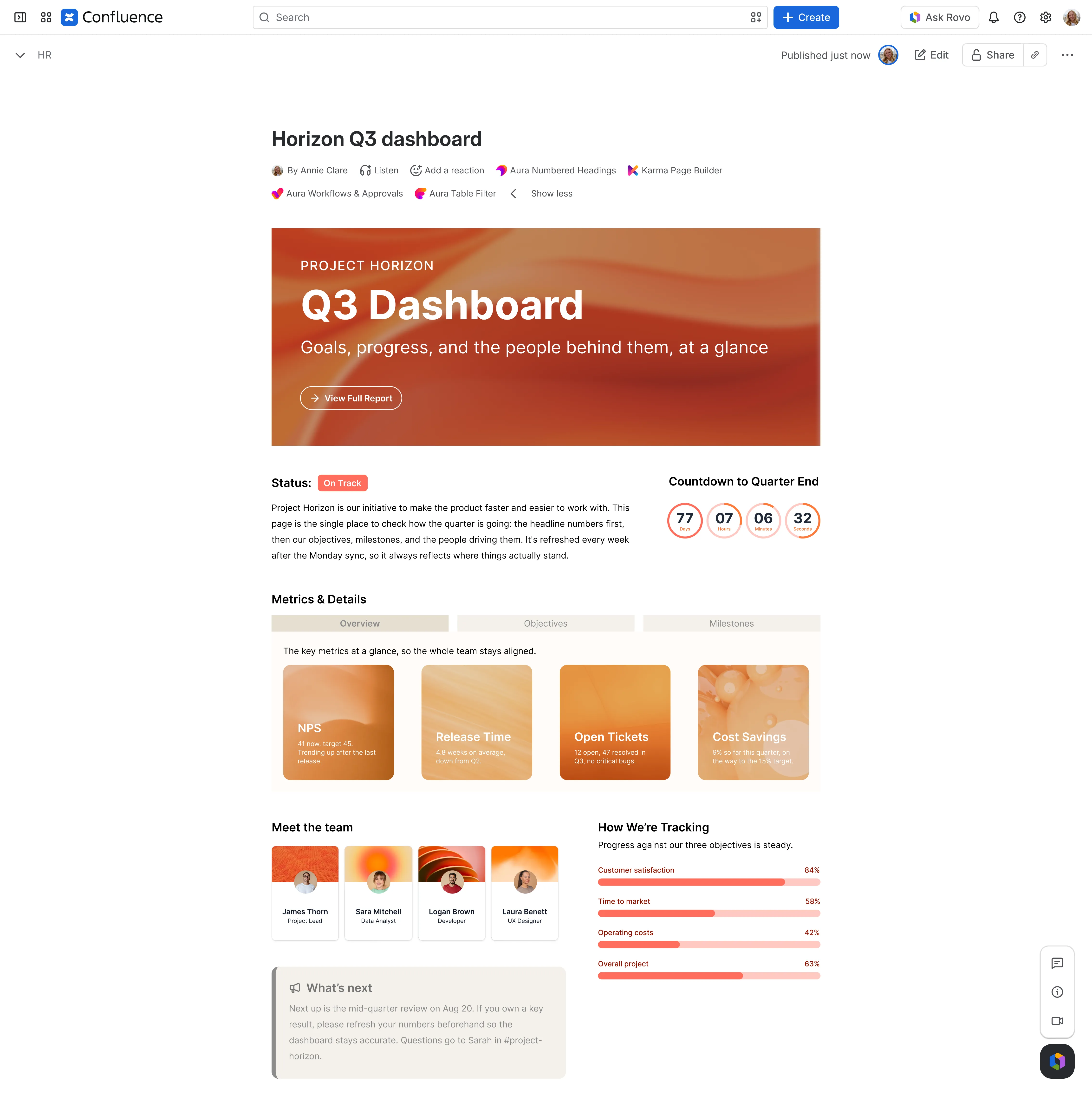
Aura Content Formatting adds a set of formatting macros to the Cloud editor. You insert them the same way as the built-in ones, with / or the + button:
- Design: background content, buttons, cards, titles, countdowns, progress bars and user profiles
- Structure: panels with free colors and borders, tabs, child tabs, expand sections, dividers, status labels, numbered headings and an HTML macro
- Dynamic content: self-updating overviews of pages, blogs, spaces, users and whiteboards
Each macro has its own settings for color, size, spacing and font, and admins can define brand colors and fonts once for the whole site.
Frequently asked questions
What are macros in Confluence?
Macros are elements you insert into a Confluence page to add functionality or show content from elsewhere, such as a table of contents, a list of attachments or Jira work items. Confluence Cloud includes more than thirty, and apps from the Atlassian Marketplace add more.
How do I insert a macro in Confluence Cloud?
In edit mode, type / and start typing the macro name, or select the + button next to a content block. Select View more to browse all macros.
How do I edit a macro in Confluence?
In edit mode, select the macro and choose the edit (pencil) icon. The settings panel opens, and changes are saved as you go.
How do I use Jira macros in Confluence?
Type /jira on a page and choose the Jira work items macro. Paste a work item link, a filter link or a JQL query, then choose whether to show a single item, a table or a count. Jira charts and timelines have their own macros.
Can I create my own macro in Confluence Cloud?
Not inside Confluence. Cloud has no user macros, so custom macros have to be built as a Forge app or taken from the Marketplace.
Why can’t I find a macro I used in Data Center?
Some macros only exist in Data Center or the legacy editor, and some have been replaced by editor features. Panels, highlighting and alignment are now in the toolbar or the / menu. The table above lists the replacements.