 By Patricia ModispacherMay 31, 2024Updated Nov 3, 202610 minute read
Confluence HTML macro in Cloud: what works and how to add HTML
Confluence Cloud has no built-in HTML macro. Compare the options for adding HTML, CSS and JavaScript to a page, with steps, examples and fixes.
Confluence Cloud has no built-in HTML macro. If you moved from Data Center, or followed an older guide, you will not find it in the macro browser. To add your own HTML, CSS or JavaScript to a Cloud page, you need a Marketplace app. If you only want to show another website on a page, the native iFrame macro is enough.
This guide compares the options, shows how to add HTML with the Aura HTML macro step by step, and covers the most common reasons embedded code does not show up.
HTML in Confluence Cloud vs. Data Center
Confluence Data Center ships an HTML macro, but it is switched off by default. Atlassian calls it a legacy macro and warns that “enabling these macros can make your Confluence site vulnerable to cross-site scripting attacks” (Atlassian documentation). Any script on the page runs with the rights of whoever views it.
Confluence Cloud has no equivalent. HTML code pasted into the editor shows up as plain text, tags included, and a code block only displays it. Content copied from a web page is converted into regular Confluence formatting, such as headings and paragraphs. What Cloud does offer is a way to embed a complete web page in a frame.
Your options in Confluence Cloud
| Option | What it does | Limits |
|---|---|---|
| Native iFrame macro | Embeds a web page by URL | Only works for sites that allow framing. No custom code. |
| Smart Links (embed view) | Shows a live preview of supported apps and sites | Not every URL can be embedded. No custom code. |
| Marketplace app with an HTML macro | Runs your own HTML, CSS and JavaScript on the page | Needs an app. An admin decides whether it is enabled. |
Use the iFrame macro or a Smart Link when the content already exists as a web page, such as a dashboard or a public form. You need an HTML macro when you want to write or paste the code yourself: a styled block, a small calculator, a booking widget or a form.
Several apps on the Atlassian Marketplace add an HTML macro to Confluence Cloud. They differ in how they keep code contained. Some run it in a separate frame, some restrict scripts to domains an admin approves. Aura Content Formatting includes one, called Aura HTML (iframe).
How to add HTML to a Confluence Cloud page with Aura
Aura Content Formatting is a Confluence Cloud app with formatting macros for panels, tabs, cards, buttons and more. Its HTML macro renders your code in a frame inside the page, separate from Confluence itself.
1. Enable the macro (admin)
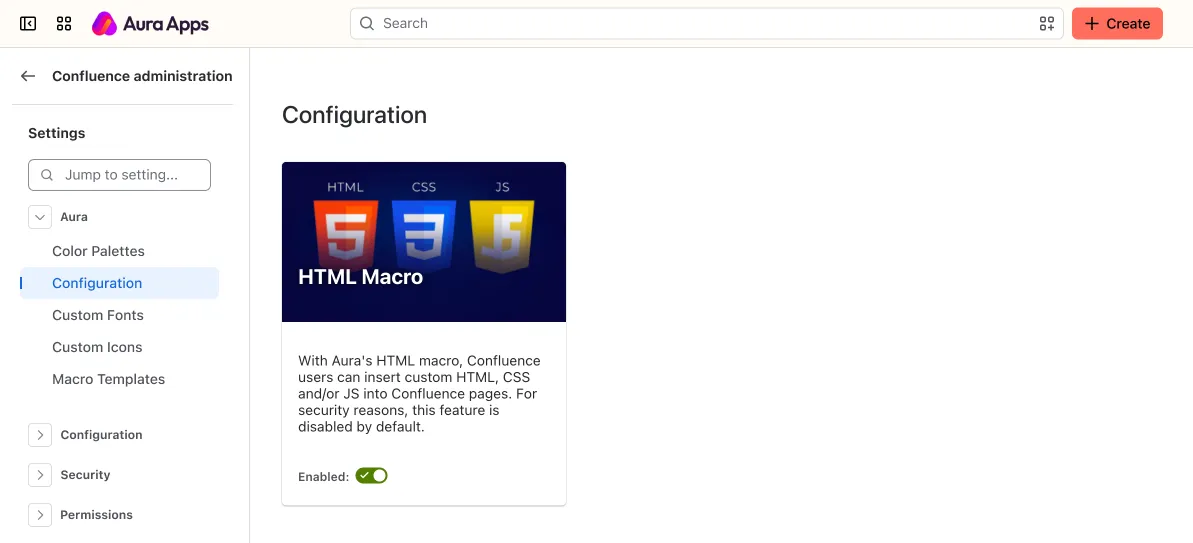
The HTML macro is disabled by default. A Confluence admin enables it once:
- Open Confluence settings.
- Go to Aura → Configuration.
- Switch on HTML Macro.
The macro is then available to everyone who can edit pages.
2. Insert the macro
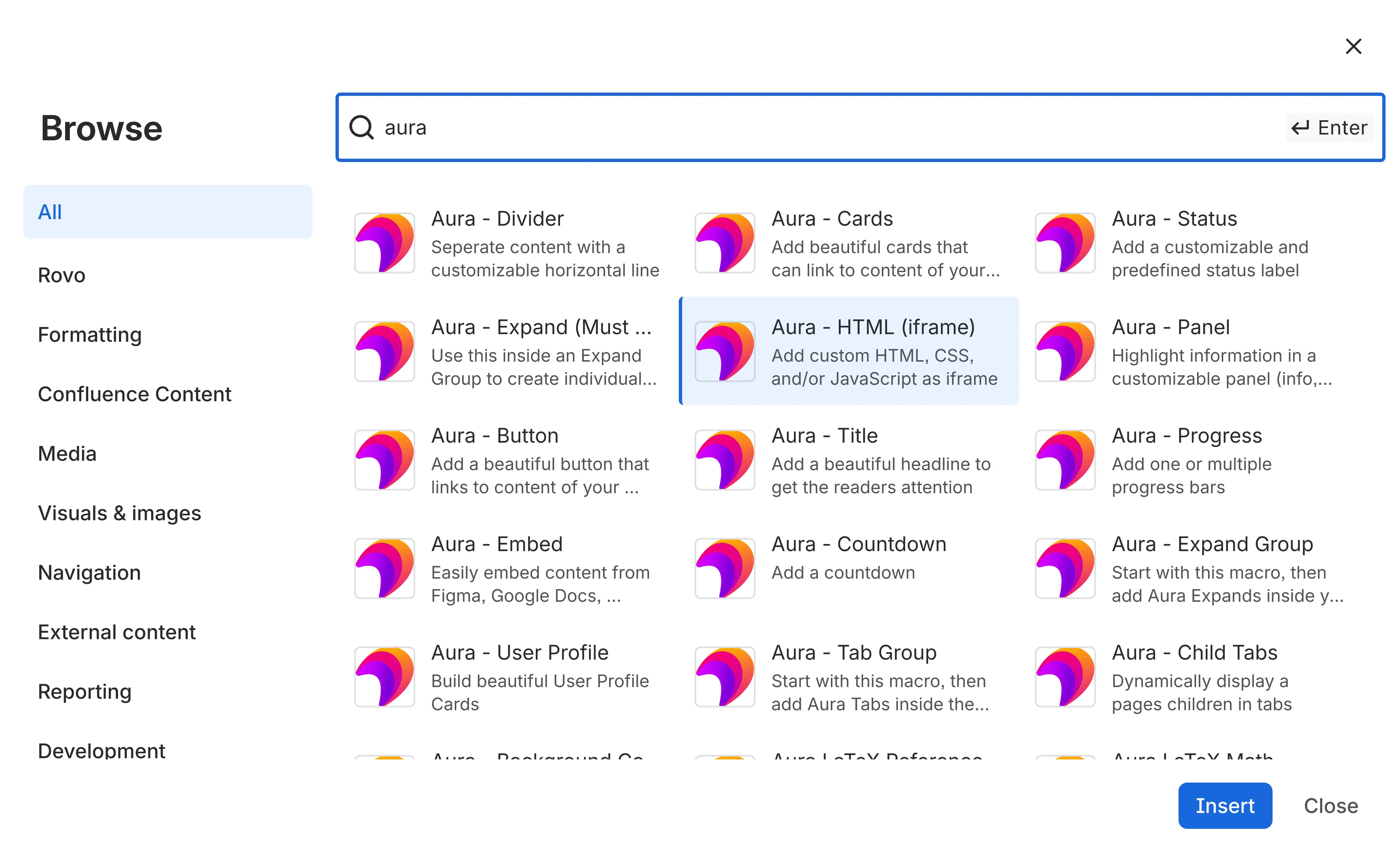
Open the page in edit mode, type /aura html and select Aura - HTML (iframe).
3. Add your code
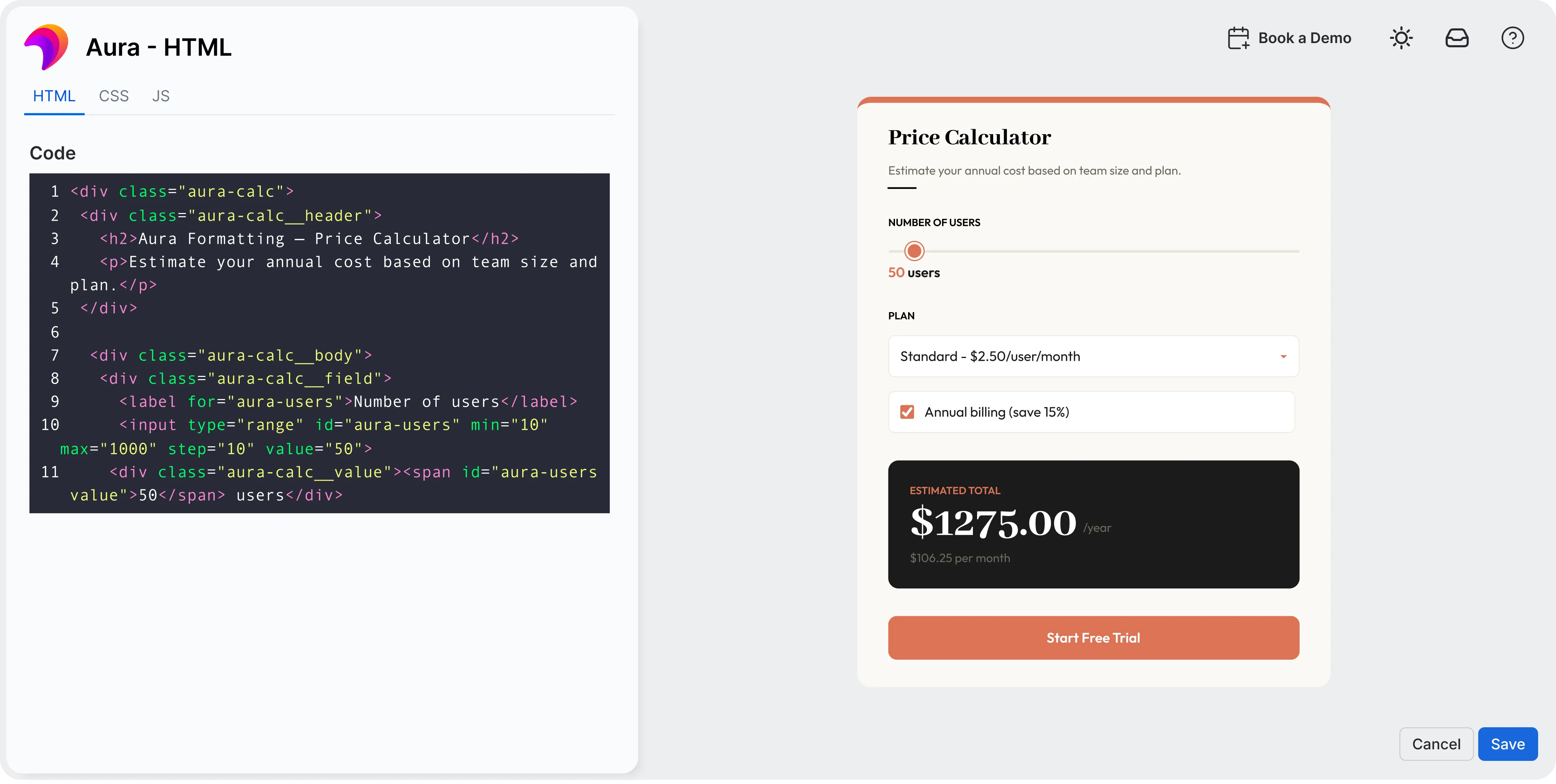
The configuration dialog has three tabs: HTML, CSS and JS. Paste your code into each, and the preview next to the editor updates as you type. Click Save to place the macro on the page.
4. Publish the page
Publish or update the page. Readers see the rendered result, not the code. To change it later, edit the page, select the macro and click Edit.
Examples
A styled block with HTML and CSS
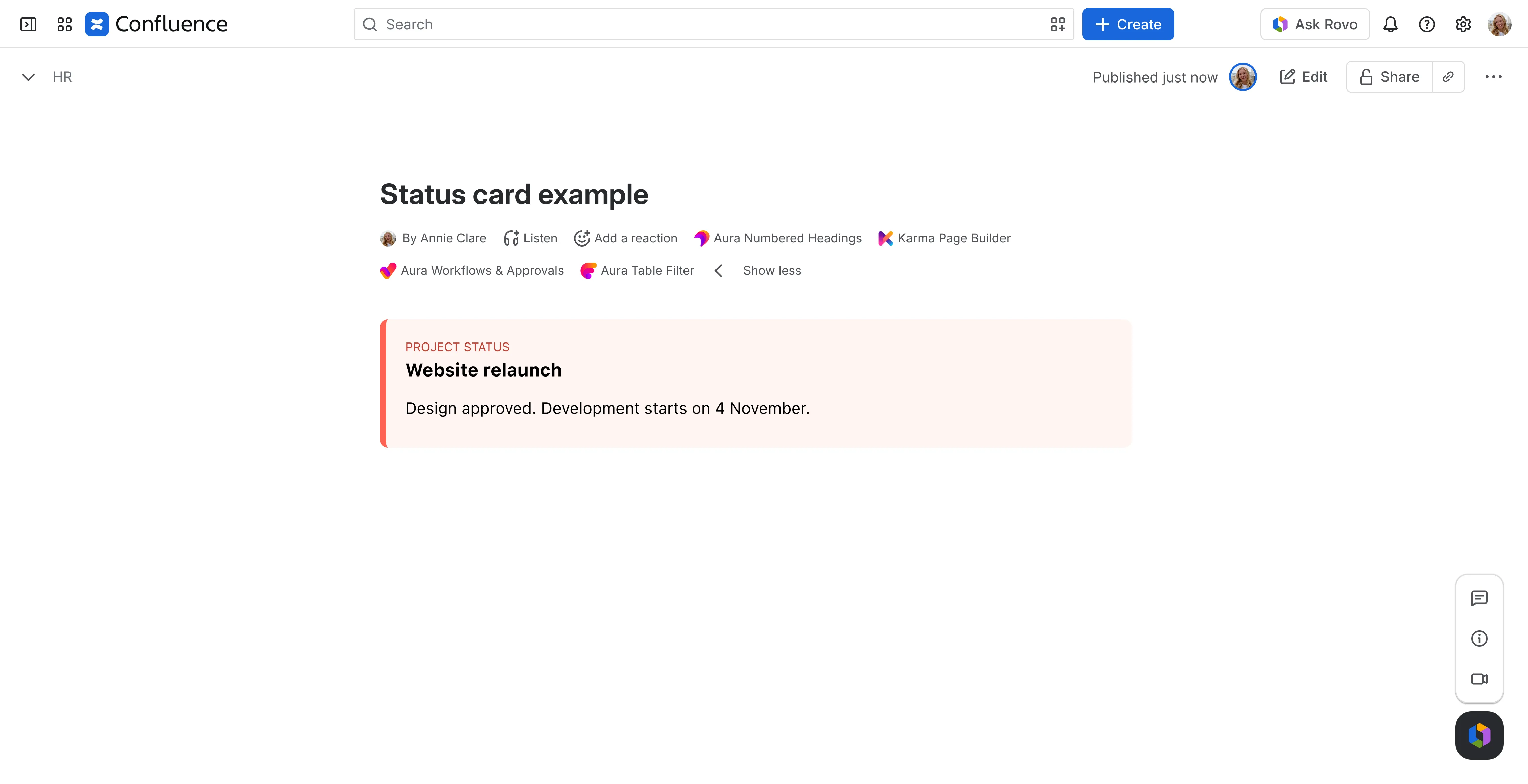
A status card that matches your team’s colors, which the standard Confluence formatting cannot produce.
HTML tab:
<div class="card">
  <span class="label">Project status</span>
  <h3>Website relaunch</h3>
  <p>Design approved. Development starts on 4 November.</p>
</div>
CSS tab:
.card {
  font-family: system-ui, sans-serif;
  border-left: 6px solid #ff6e5c;
  background: #fff5f2;
  padding: 16px 20px;
  border-radius: 8px;
}
.label {
  font-size: 12px;
  text-transform: uppercase;
  color: #b34a3c;
}
.card h3 {
  margin: 4px 0 8px;
}
A booking widget
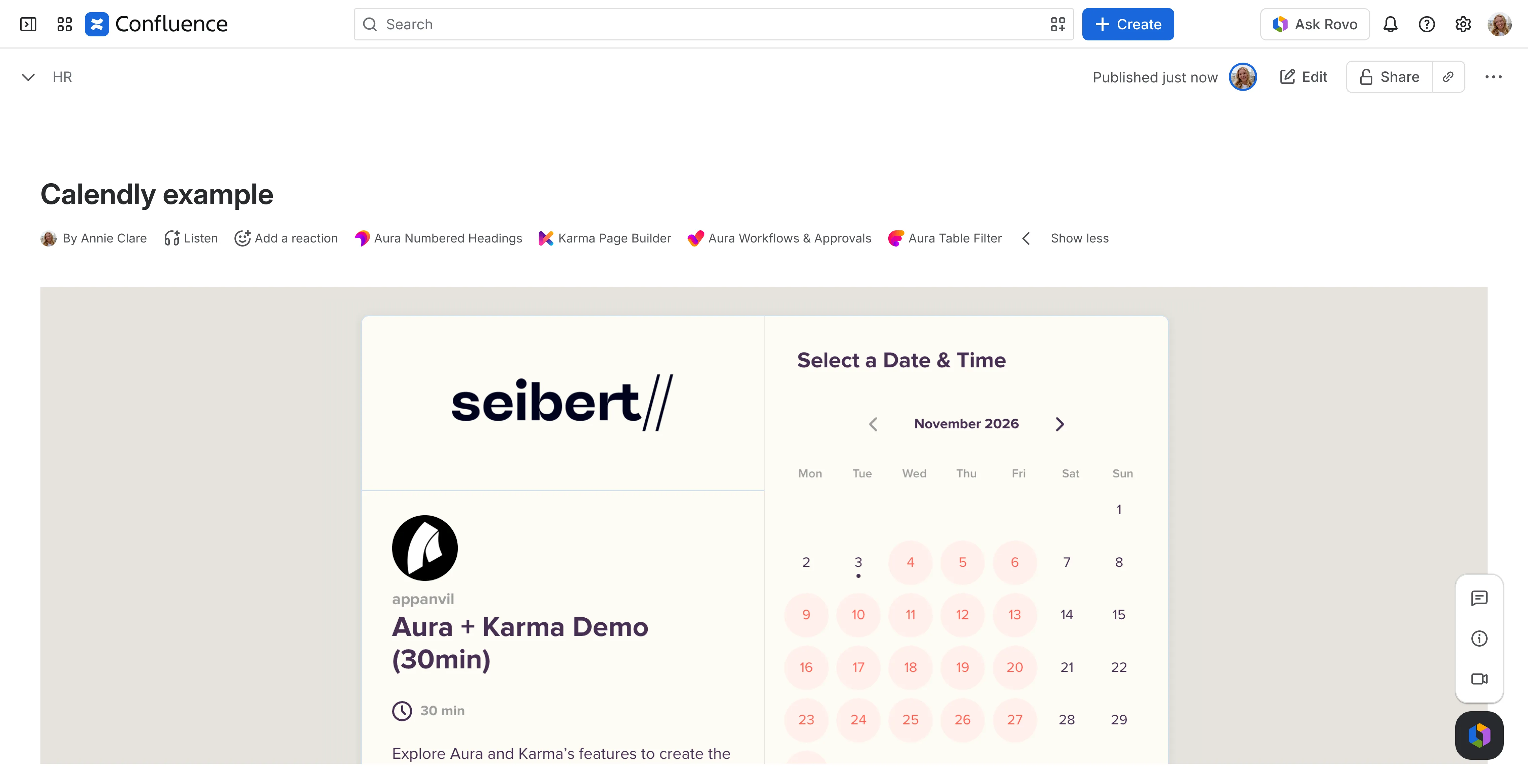
Many tools give you an embed snippet to put on a website: booking calendars, forms, surveys. Paste the snippet into the HTML tab, including its <script> tags, and the widget runs on the page. Here is a Calendly booking calendar:
An external HTML file
If the HTML already lives on a web server, you can load it into the macro instead of copying it. Put this into the JS tab and replace the URL:
const pathToFile = "https://example.org/index.html";

fetch(pathToFile)
  .then((response) => {
    if (!response.ok) throw new Error(response.statusText);
    return response.text();
  })
  .then((html) => {
    document.body.innerHTML = html;
  })
  .catch((error) => console.error("Could not load the HTML file:", error));
This only works if the server allows cross-origin requests (CORS). Scripts inside the loaded file do not run this way. The Aura documentation has a longer version of the script that also loads them.
When embedded HTML does not show up
The macro is missing from the list. The HTML macro is disabled until an admin switches it on. See step 1.
The frame stays blank. If your HTML contains an <iframe> pointing to another site, that site may forbid being shown in a frame on other domains. Many large sites do this with an X-Frame-Options or Content Security Policy header. Nothing on the Confluence side changes that. Use the site’s official embed code if it has one, or link to it instead.
A loaded file or API call fails. Requests from the macro to another domain need that server to allow cross-origin requests. Check the browser console for a CORS error.
The script cannot change the Confluence page. Your code runs in a frame on a different domain than Confluence, so the browser blocks it from reading or changing the page around it, such as the title, other macros or the navigation.
The widget looks cut off. The macro adjusts its height to the content, so a cut-off widget usually sets a fixed height in its own embed code. Remove that height or set one that fits.
When you do not need HTML at all
A lot of what people build with HTML in Confluence can be done with regular macros, without code and without an admin enabling anything:
- Embedding Figma, Miro, Loom, Google Docs or Microsoft 365 files: the Aura Embed macro, with no code
- Highlighted boxes: Confluence panels with custom colors
- Cards and buttons: Confluence cards
- Tabs and collapsible sections: Confluence tabs and collapsible sections
- Status labels: interactive status macros
Use the HTML macro for what these cannot do: your own interactive elements, third-party widgets, or layouts that have to match a specific design.
Frequently asked questions
Can you add HTML to a Confluence Cloud page?
Not with Confluence alone. Cloud has no HTML macro, and HTML pasted into the editor does not render. You need a Marketplace app with an HTML macro, such as Aura Content Formatting.
Can you embed a website in Confluence Cloud?
Yes. The native iFrame macro embeds a page by URL, as long as the site allows framing. For your own code, use an HTML macro.
Is the HTML macro safe to use?
It depends on who can edit pages. Code in an HTML macro runs in the browser of everyone who views the page, which is why Atlassian disables the Data Center macro by default and why Aura’s is off until an admin enables it. Treat it like any code that runs on your site: enable the macro only if you trust the people who edit your pages, and review embedded scripts from third parties before using them.
Does the Aura HTML macro work in Confluence Data Center?
No. Aura Content Formatting is available for Data Center, but the HTML macro is part of the Cloud version only. In Data Center, use Confluence’s own HTML macro. A Confluence admin has to enable it first, and Atlassian recommends leaving it disabled if anonymous or self-registered users can create content.
Related guides
- Confluence macros: your ultimate what and how-to guide
- Confluence page examples and design ideas
- How to create collapsible sections in Confluence: includes an Aura HTML macro inside an expand