 By Patricia ModispacherJul 17, 2024Updated Nov 2, 202611 minute read
How to create collapsible sections in Confluence
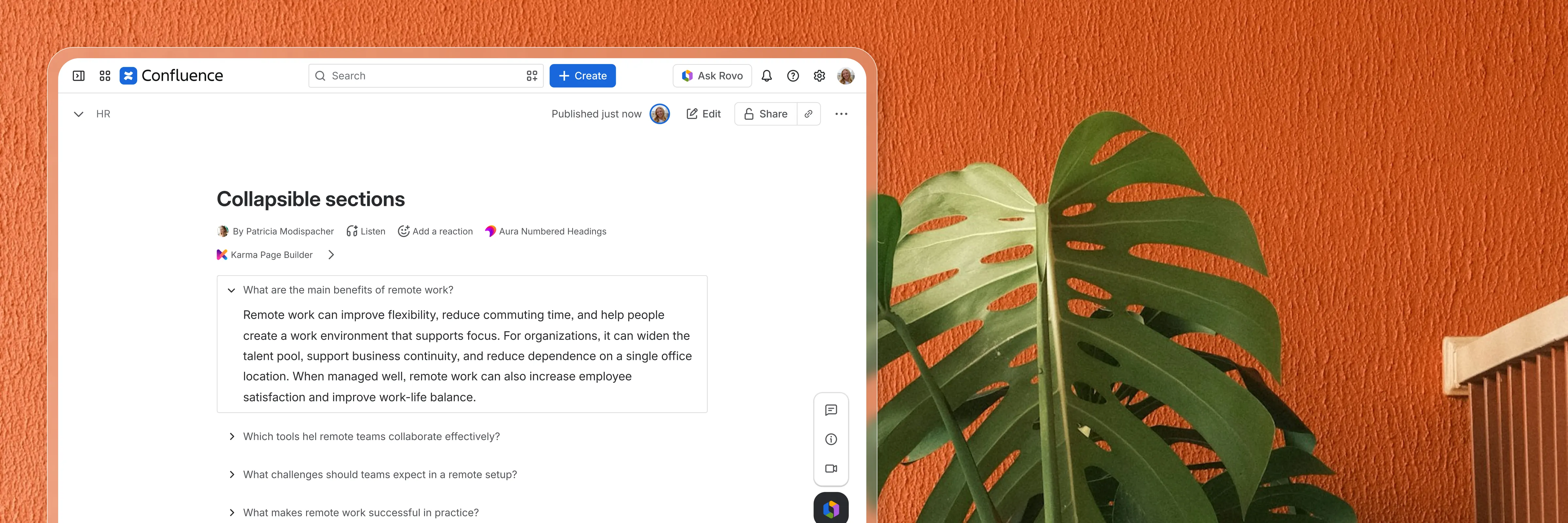
Use the expand macro to create collapsible sections in Confluence. See how nesting works, where the native macro stops, and what Aura adds on top.
A collapsible section in Confluence hides content behind a clickable title until a reader opens it. Depending on who you ask, it is an expandable section, a toggle, a foldable section or an accordion. Confluence Cloud builds these with the expand macro, which is available on every page without an extra app. This guide shows how to create a collapsible section in Confluence step by step, where the native expand macro reaches its limits, and how the Aura Expand macro handles the cases it does not cover.
How to create a collapsible section in Confluence
- Open the page and click Edit.
- Type
/expandand select Expand from the list. - Replace the default title, “Click here to expand…”, with a title that tells readers what is inside.
- Add your content inside the expand.
- Click Publish or Update.
Readers now see only the title. One click opens the section, a second click closes it.
When collapsible sections help
Collapsible sections work best on pages that serve several audiences at once, where most readers need only part of the content:
- FAQ pages, with one expand per question
- Meeting notes, with details and raw notes tucked away below the decisions
- How-to pages, with troubleshooting steps that only some readers need
- Release notes and changelogs, with older entries collapsed
- Reference pages with long tables or code samples
The page stays short enough to scan, and readers still find the full detail in the same place.
Using the native expand macro in Confluence
Insert the expand macro
Open the page in edit mode, type /expand and select Expand. You can also insert it from the plus menu in the editor toolbar.
Add a title and content
Replace the default title with something specific. “Travel policy details” tells readers whether to open the section, “More info” does not. Then add the content inside the expand: text, lists, tables, images and most other page elements.
Publish the page
Click Publish or Update. In view mode, the section is collapsed and readers open it by clicking the title.
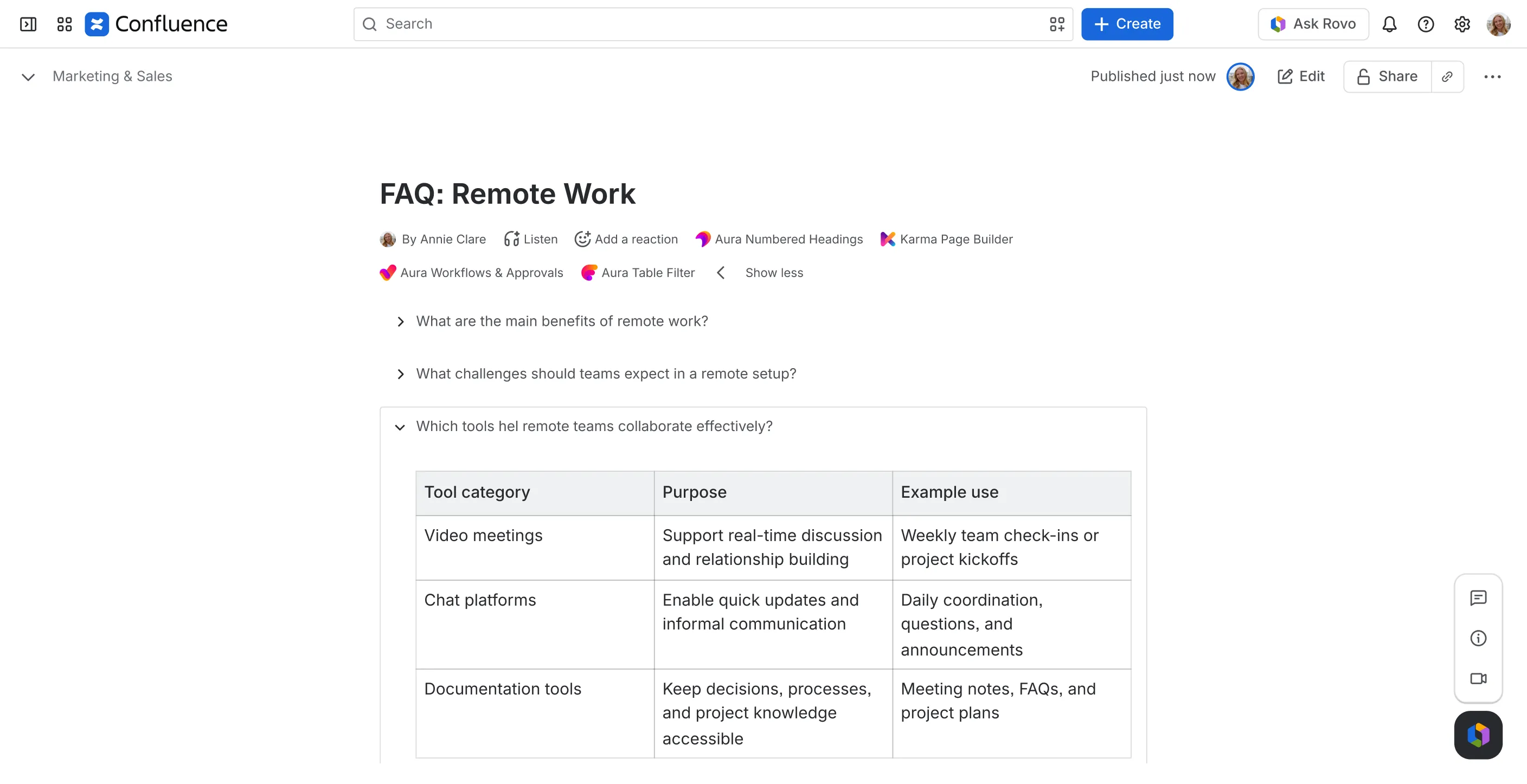
Collapsible sections in PDF and HTML exports
When you export a page to PDF or HTML, Confluence opens every expand so the content appears in the file. You do not need to expand sections by hand before exporting.
Where the native expand macro stops
The native expand macro does one job well: it hides and shows content. Everything around that is fixed.
- The title is the only setting. There are no options for color, icon or style.
- Every expand looks the same, so a collapsed section blends into the page and readers can skip past it.
- Expands are independent of each other. There is no way to style a set of sections together or number them.
For a single FAQ or a page of meeting notes, that is often enough. On pages that need to guide readers, such as onboarding pages, policies or team home pages, the plain style becomes a problem: readers do not notice there is more content to open.
Collapsible sections with Aura Expand
Aura Content Formatting is a Confluence Cloud app with formatting macros for panels, tabs, buttons, cards and more. Its expand macro adds the design options the native one lacks.
Aura Expand works with two macros:
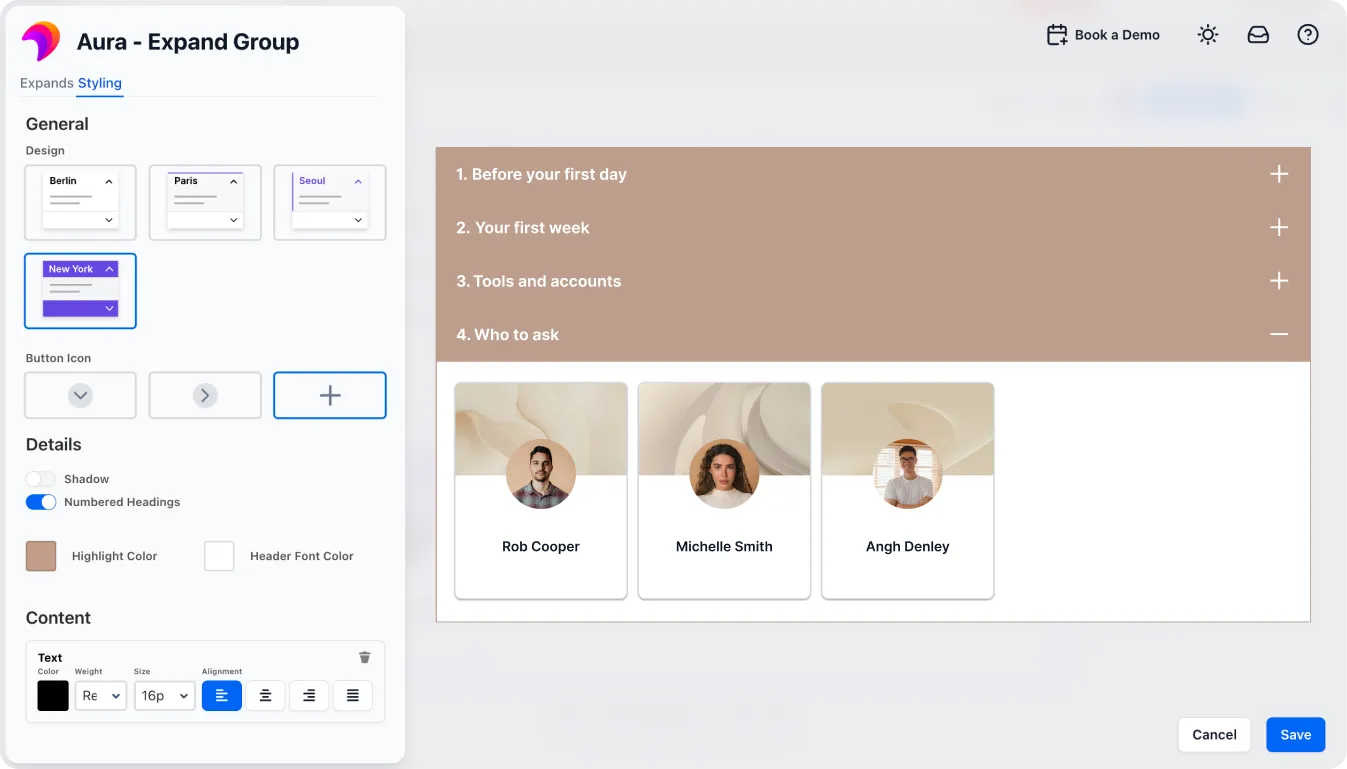
- Aura Expand Group is the container. It holds the design settings for every section inside it: a preset design, a highlight color, the icon style and optional numbered headings.
- Aura Expand marks the start of each collapsible section. You give each one a title and, if you like, an icon.
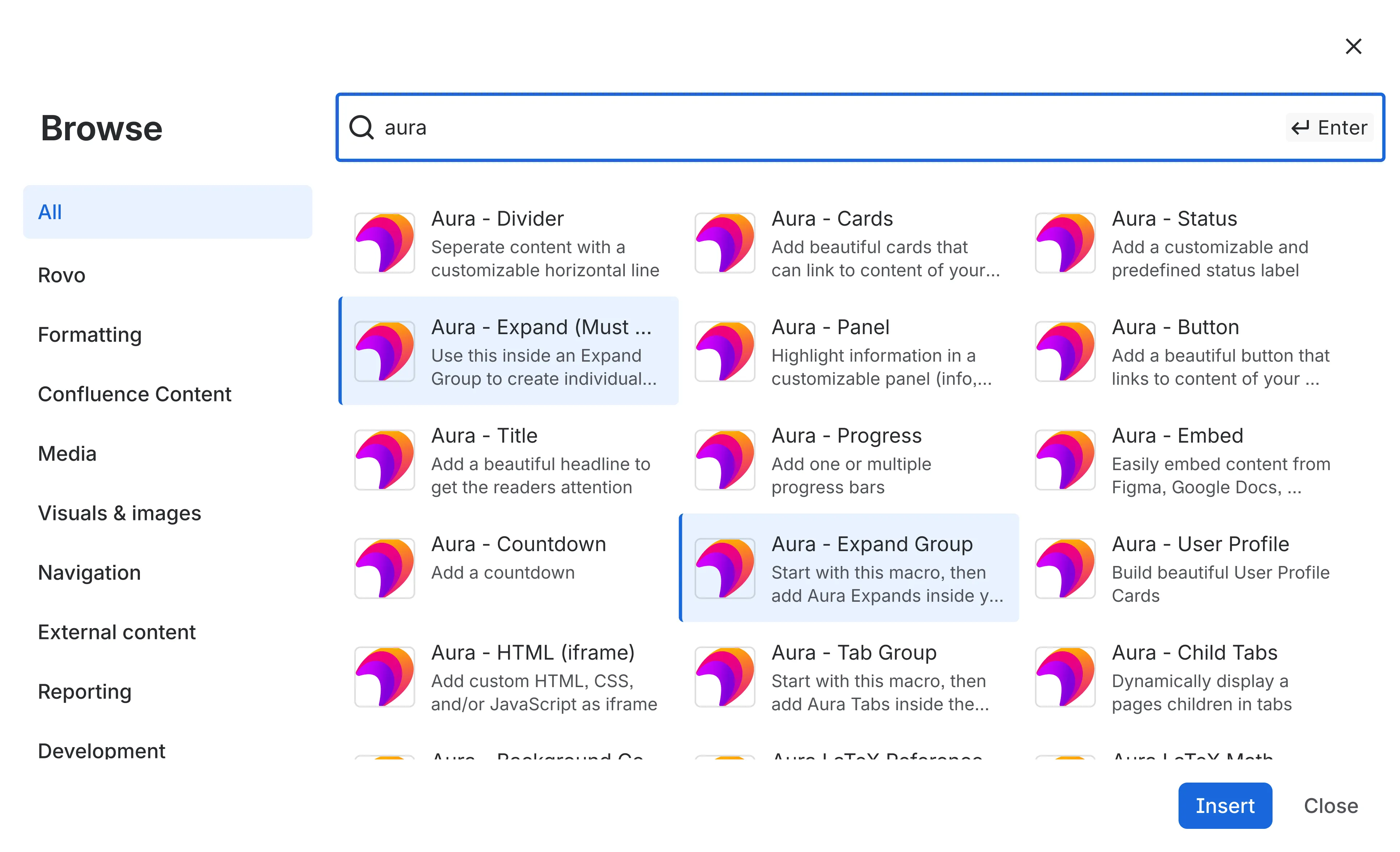
Because the design sits on the group, all sections on a page look consistent, and you change their style in one place. The group also works as an accordion: within a group, opening a section closes the one that was open before. Separate groups on the same page work independently of each other.
Example: an onboarding page
A new hire opens the onboarding page on their first day. With native expands, they see a column of identical titles, and nothing tells them where to start or which section matters today.
With Aura Expand, the same page reads as a guide:
- Numbered sections set the order: 1. Before your first day, 2. Your first week, 3. Tools and accounts, 4. Who to ask.
- Icons make each section recognizable at a glance, so returning readers find “Tools and accounts” without reading every title.
- The accordion keeps the page short. Opening “Your first week” closes “Before your first day”, so the reader never scrolls through content they are done with.
- The design matches the rest of your intranet, so the page looks like part of it rather than a draft.
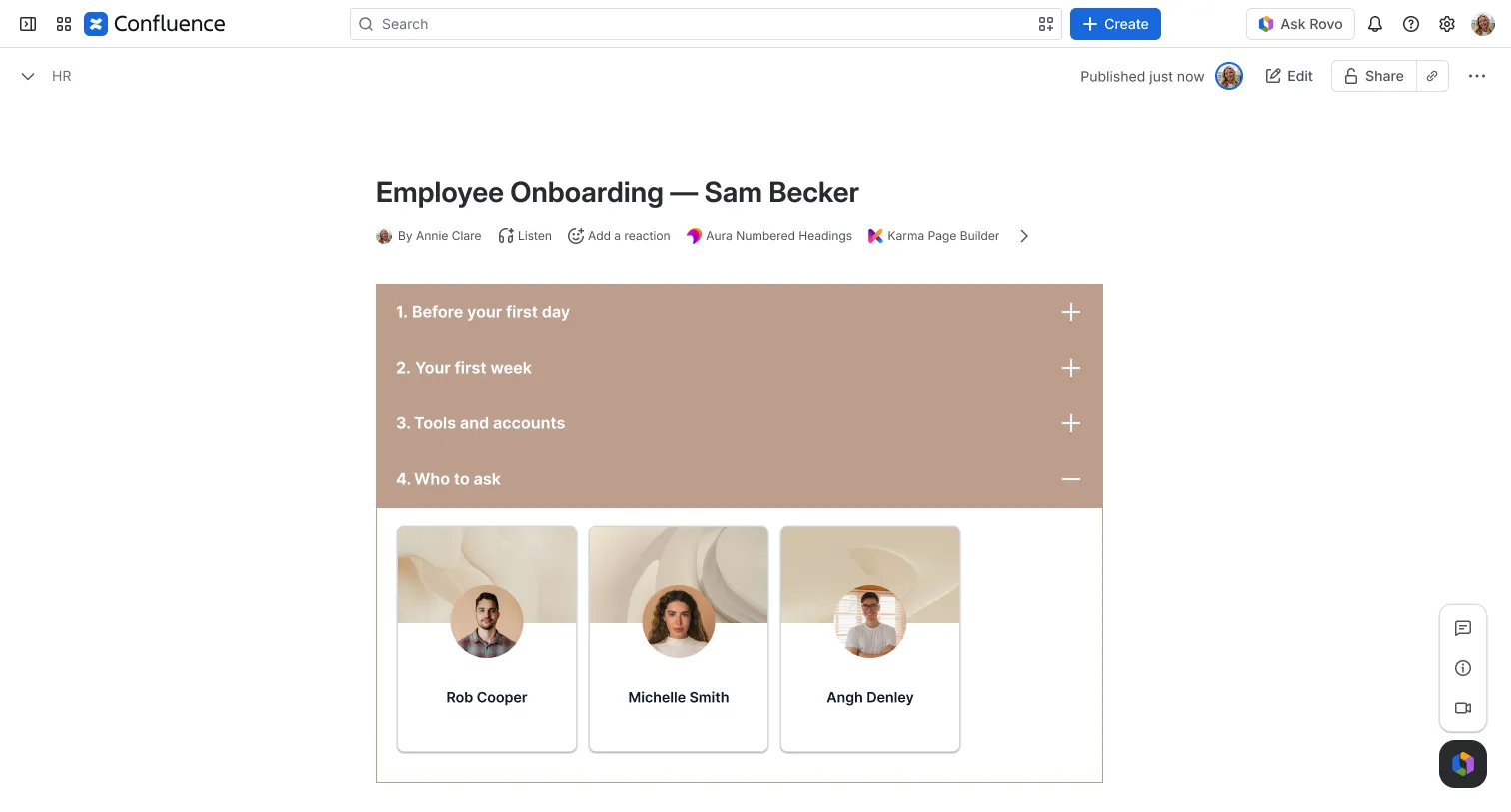
The same pattern works for policies, FAQ pages and process documentation: any page where readers should follow an order or find one answer quickly.
How to use Aura Expand
- Insert the Aura Expand Group macro and pick a design. Turn on numbered headings if the sections follow an order.
- Inside the group, insert an Aura Expand macro for each section and give it a title and an icon.
- Place each section’s content below its Aura Expand macro, before the next one.
- Publish the page.
Interactive content in a collapsible section
A section can hold more than text and images. With the Aura HTML macro, you can place your own HTML, CSS and JavaScript in a section, such as a small chart or a calculator. This works in Aura Expand and in the native expand macro. The content stays hidden while the section is collapsed, renders at full height when a reader opens it, and stays interactive. A Confluence admin has to enable the Aura HTML macro once before it is available.
Native expand vs. Aura Expand
| Native expand macro |  Aura Expand | |
|---|---|---|
| Included in Confluence Cloud | ✅ | Part of Aura Content Formatting |
| Icon per section | ❌ | ✅ including custom SVG icons |
| Design presets and highlight color | ❌ | ✅ |
| Numbered sections | ❌ | ✅ |
| Shared style for a set of sections | ❌ | ✅ set once on the group |
| Opening one section closes the others (accordion) | ❌ | ✅ |
| Nesting: expand inside an expand or a table cell | ✅ | ❌ |
Both handle tables, code blocks, the Aura HTML macro and PDF export, where every section opens automatically.
The native expand macro is the quick option for hiding a few details on a working page, and the right one when you need an expand inside a table cell. Aura Expand is built for pages that readers should find their way through: onboarding, policies, FAQs and team pages, where sections follow an order, belong together and should match your company’s design.
Frequently asked questions
Is there an accordion macro in Confluence?
Not natively. The closest built-in option is the expand macro, but each native expand opens and closes on its own, so several sections can be open at once. Aura Expand Group behaves like an accordion: opening one section closes the others in the same group.
Can you expand or collapse all sections at once?
Not in view mode. The native expand macro has no expand-all control, so readers open each section one by one. Aura Expand Group keeps one section open at a time by design. If you need all content visible at once, export the page to PDF: every section opens automatically, both with the native expand macro and with Aura Expand.
Can you put a table or a table of contents inside a collapsible section?
Yes. A native table works inside both the native expand macro and Aura Expand. It also works the other way round: you can place a native expand inside a table cell, which lets you collapse long cell content. A table of contents works inside a native expand. In Aura Expand, the Table of Contents macro can be inserted but is not displayed, so keep it outside the group or use a native expand for it.
Can you make a code block collapsible?
Yes. Put a native code block inside an expand. This works with the native expand macro and with Aura Expand, and readers see the code only when they open the section.
Related guides
- Confluence tabs made easy with Aura: tabs are the other way to fit more content on one page
- Confluence panel macro and custom panel colors: highlight content that should stay visible
- Confluence macros: your ultimate what and how-to guide
- Confluence page examples and design ideas